Transfer to Accounting
The Transfer to Accounting screen moves the posted donation totals over to the Accounting module as Dona. transactions. Donations can also be transferred from the Accounting.
Access Transfer to Accounting
To access from the Button Bar, go to Donations > Transfer to Accounting.

To open after posting to Donations, choose  to open the Transfer to Accounting dialog after posting to Donations.
Transfer Donations
-
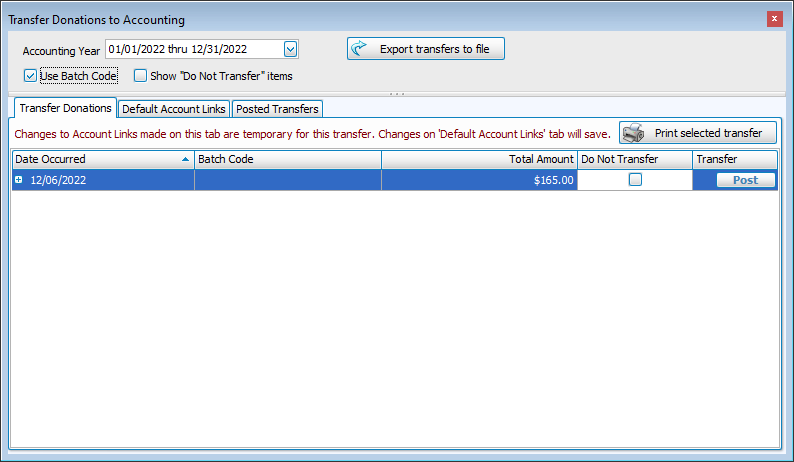
Batches that have been posted but not yet transferred appear on the first tab with the date the batch was posted, the batch code and the total.
-
Click the plus icon on the left to expand the batch and view individual donations. This also allow you to see the Debit and Credit account associated with that giving account. You can change these accounts by clicking in the drop down - this will affect this transfer only, leaving the default links as they were.
-
Click the Do Not Transfer check box if you do not want to transfer the batch. For example, you might not transfer over a correction to a donation if that correction has already taken place in Accounting or if that transfer would affect previous reconciliations. You can view these batches by clicking the Show Do Not Transfer items check box.
-
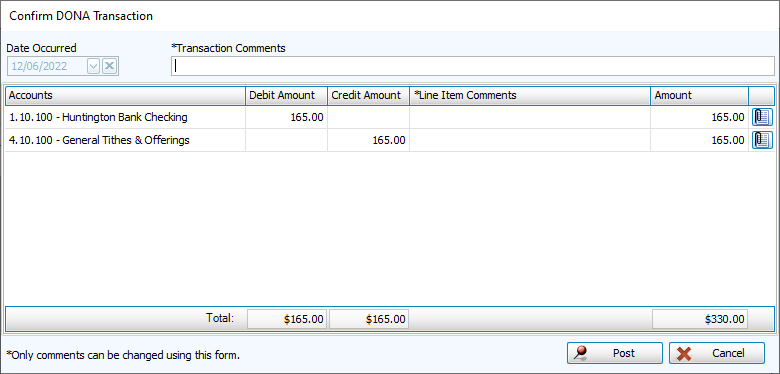
Click Post to initiate the Transfer. Confirm that the accounts are correct and enter any comments you want to add to the transfer.
Default Account Links
-
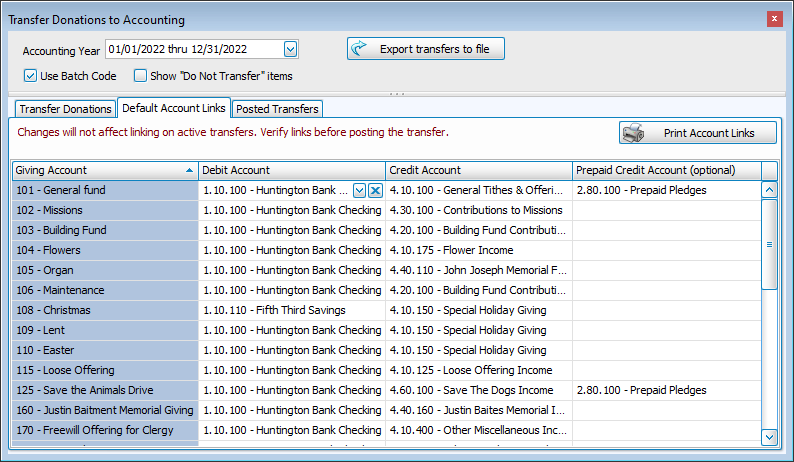
Giving Accounts in Donations are linked to a Debit and Credit account in the Accounting module. These default links can be set up in Manage Accounts or from this screen. One time changes to these links can be made during the transfer from Donations to Accounting.
Posted Transfers
-
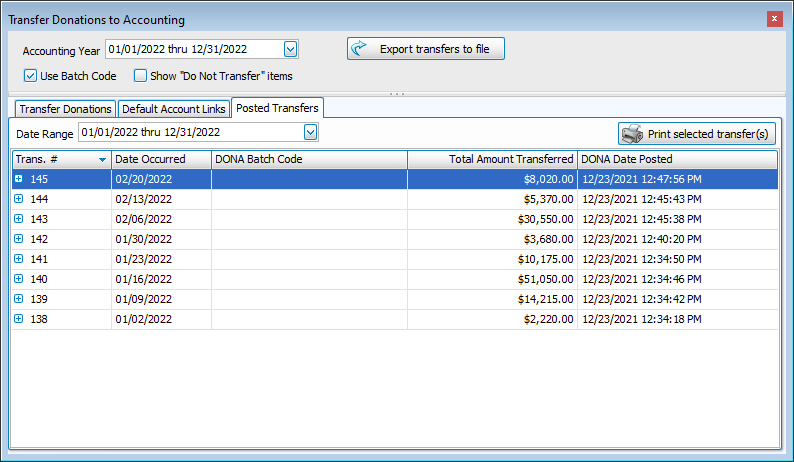
On the Posted Transfers tab you can view the Transaction Number, Dates, Batch Codes, Totals and Date Posted.
-
Click the plus button to expand the batch to see further detail on each transfer.